
Master Your Inventory with ARI’s Purchase Orders
Running low on parts in the middle of a busy week can bring your shop to a standstill. If you can save the time drain of endless calls, manual tracking, and chaotic orders, you will see your productivity ramp up.
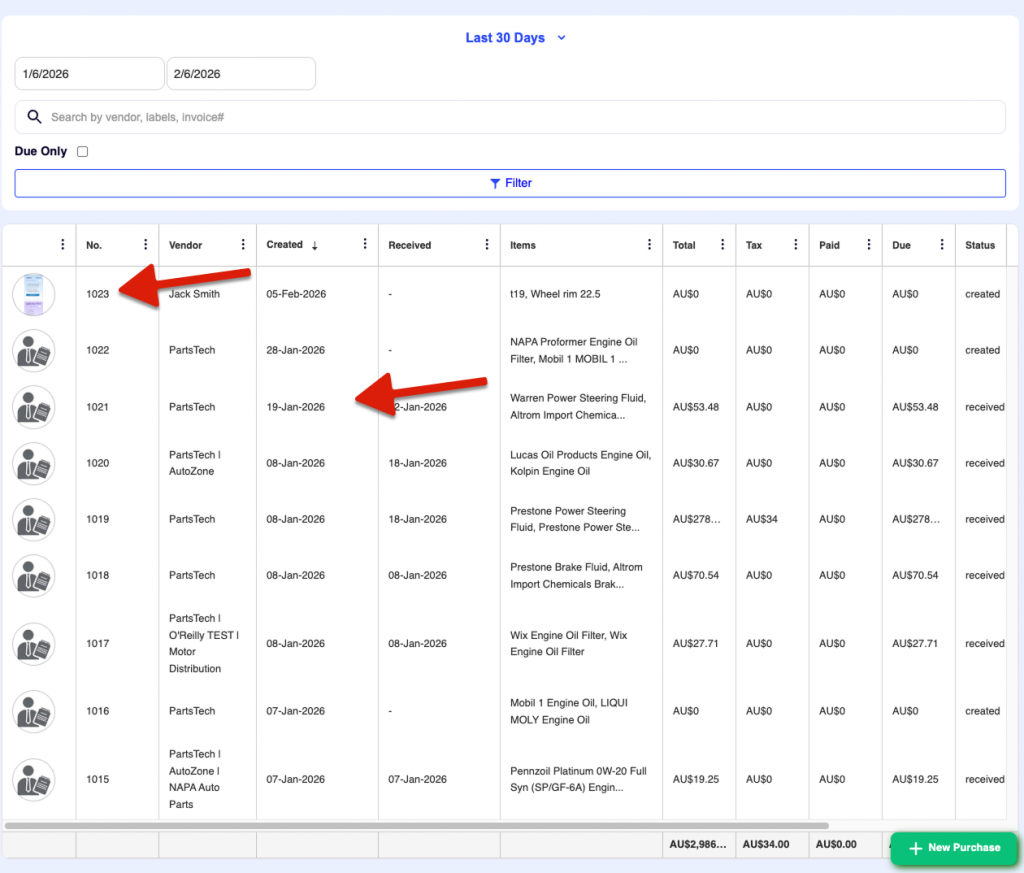
With the new Purchase Orders feature in ARI (Auto Repair Software), you can create, send, and track parts orders to your vendors without leaving the app. Found in Accounting > Purchases, this feature lets you manage your restocking workflow from a single dashboard.
How It Works: A Smoother Workflow
We designed the Purchase Order system to mirror the way you work, handling everything from the initial request to the final delivery.
1. Create a Purchase Order
Navigate to Accounting > Purchases and tap New Purchase. From there, flexibility is key:
- Select a Vendor: Choose quickly from your existing list.
- Add Parts Your Way: Pick from your inventory, order directly through PartsTech, or add a part manually.
- Keep Records Straight: ARI auto-generates a purchase number for every order, ensuring you always have a clean paper trail.
2. Send It to Your Vendor
Once your PO is ready, you can email it as a professional PDF, send it via text (SMS), or print it out—whatever works best for your relationship with that supplier. The document includes all necessary shop details, line items, and totals, minimizing communication errors.
3. Receive & Auto-Update Inventory
This is where the magic happens. When the delivery truck arrives, tap Start Receiving to check in the items.
- Verify Accuracy: Adjust quantities and costs to match what actually showed up (because we know partial shipments happen).
- One-Step Sync: Mark the order as “Received,” and ARI automatically updates your inventory counts, costs, and sale prices—no double entry required.
Powerful Integrations & Organization
The PartsTech Advantage
If you use PartsTech, you can start a quote session right inside your Purchase Order. Browse suppliers, compare prices, and place orders—then pull those items back into ARI instantly. Quote sessions stay active for 120 days, so you can plan without losing your work.
Seamless Accounting
Need to keep the books balanced? You can send any purchase order to QuickBooks with one tap. ARI maps the vendor, line items, and totals for you, keeping your accountant happy.
Stay Organized
Stop guessing where your parts are. Every Purchase Order tracks its status—Created, Receiving, or Received. You can also:
- Add Labels: Group orders by vendor, urgency, or specific jobs.
- Smart Filters: Search by date range, vendor name, or unpaid balance to find exactly what you need in seconds.
What This Means for Your Shop
Why switch to digital Purchase Orders? The difference is clear.
| Workflow Step | The “Old Way” | The ARI Way |
| Reordering Parts | Phone calls, sticky notes, & handwritten lists | Create & send professional POs directly from the app |
| Tracking Deliveries | Mental notes or spreadsheets | Track status (Created vs. Received) in real-time |
| Updating Inventory | Manual data entry after every delivery | One-tap updates for stock levels, cost, & sale price |
| Managing Cash Flow | Digging through emails for invoices | Filter by “Unpaid Balance” instantly |
Ready to Restock?
No more guessing what you ordered, what arrived, or what you still owe. Purchase Orders put your entire restocking process in one place so you can focus on fixing cars.
Check it out today under Accounting > Purchases.