Nexpart Integration | ARI

Order parts from your local suppliers with Nexpart and ARI!

Access thousands of aftermarket, OE dealer, recycled, and specialty parts vendors — all without leaving ARI.

  • Complete supplier network solutionOne signup links your shop to thousands of jobbers, dealers, and recyclers nationwide — no extra subscriptions, no separate logins.
  • Choose the part you needLook up by VIN, part number, or interchange, then weigh brand, stock, and delivery time before you commit.
  • Transfer and order in secondsSkip the manual entry. Quotes turn into approved purchases in a couple of taps, and confirmations save back to the document automatically.

Available only in the US and Canada.

Nexpart integration in ARI — hero image of catalog and invoice flow

Why Nexpart in ARI?

One connection opens the door to thousands of parts suppliers — with live pricing, real availability, and orders that land directly on your invoices and purchase orders.

Huge Supplier Network

Tap into WHI Solutions’ nationwide network — aftermarket, OE dealer, recycled, and specialty parts vendors all in one place.

Compare Prices Across Vendors

See wholesale and list pricing from multiple suppliers side by side. Multi-vendor carts let you pick the best deal on every part.

Seamless Integration

Parts flow directly into your ARI invoices, estimates, job cards, and purchase orders. No copy-paste, no double entry.

Create a Nexpart Account

If you don’t already have a Nexpart account, you’ll need one before connecting to ARI.
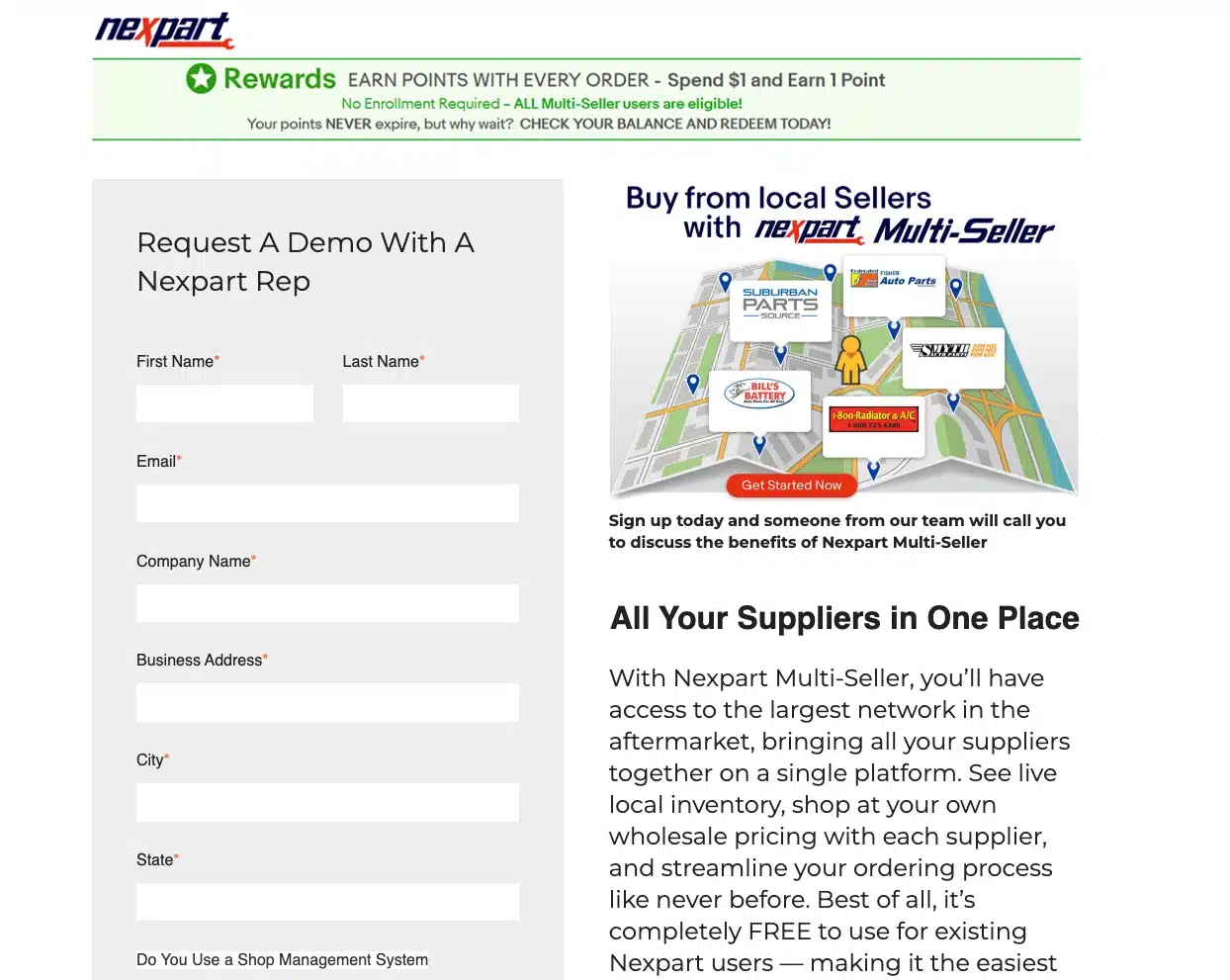
  1. Sign up with NexpartVisit nexpart.com and create an account. Nexpart will set you up with access to parts suppliers in your area.
  2. Connect with local suppliersOnce your account is active, Nexpart pairs you with parts vendors based on your shop’s location. You may be connected to a single vendor or multiple vendors depending on your area.
  3. Get your credentials readyYou’ll need your Nexpart username and password to connect ARI. Keep these handy for the next step.
Nexpart sign-up page

Connect ARI with Nexpart

Once you have your Nexpart credentials, connecting them to ARI takes less than a minute.
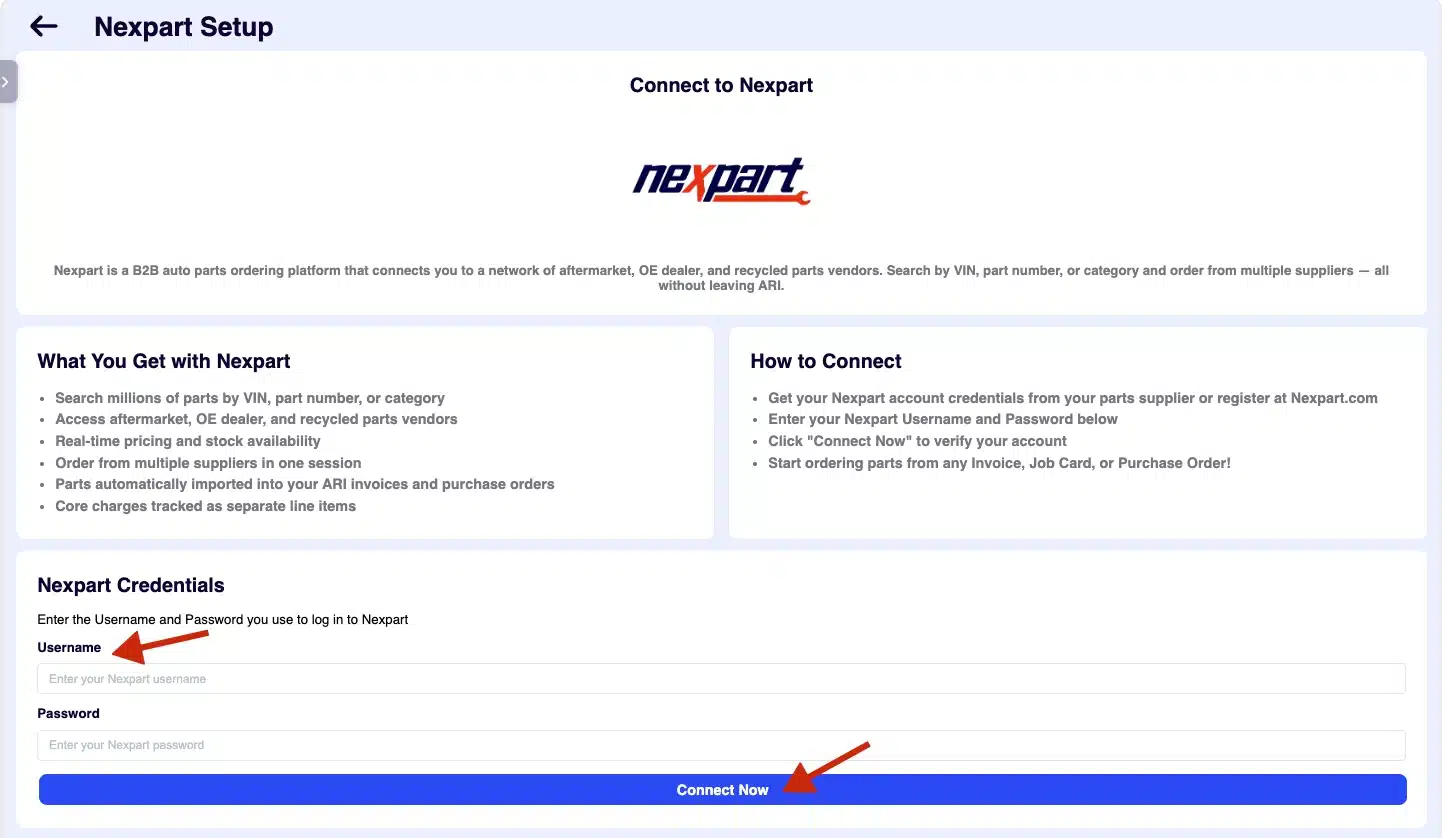
  1. Open ARI SettingsLog in to ARI and navigate to Settings > Parts Procurement > Nexpart.
  2. Enter your Nexpart credentialsType in your Nexpart username and password, then tap Connect.
  3. You’re connected!ARI will verify your credentials with Nexpart. Once verified, you’ll see a confirmation message and your Nexpart connection status will show as active.
Nexpart settings page in ARI with username and password fields

Order Parts on a Job Card or Invoice

The most common way to use Nexpart in ARI. Find parts while working on a customer’s vehicle, and they get added directly to the job card or invoice.

Step 1

Open your job card, invoice, or estimate

Create or open an existing document. For the best experience, make sure you have a vehicle selected — ARI will pass the VIN to Nexpart so the catalog opens with the correct vehicle already loaded.
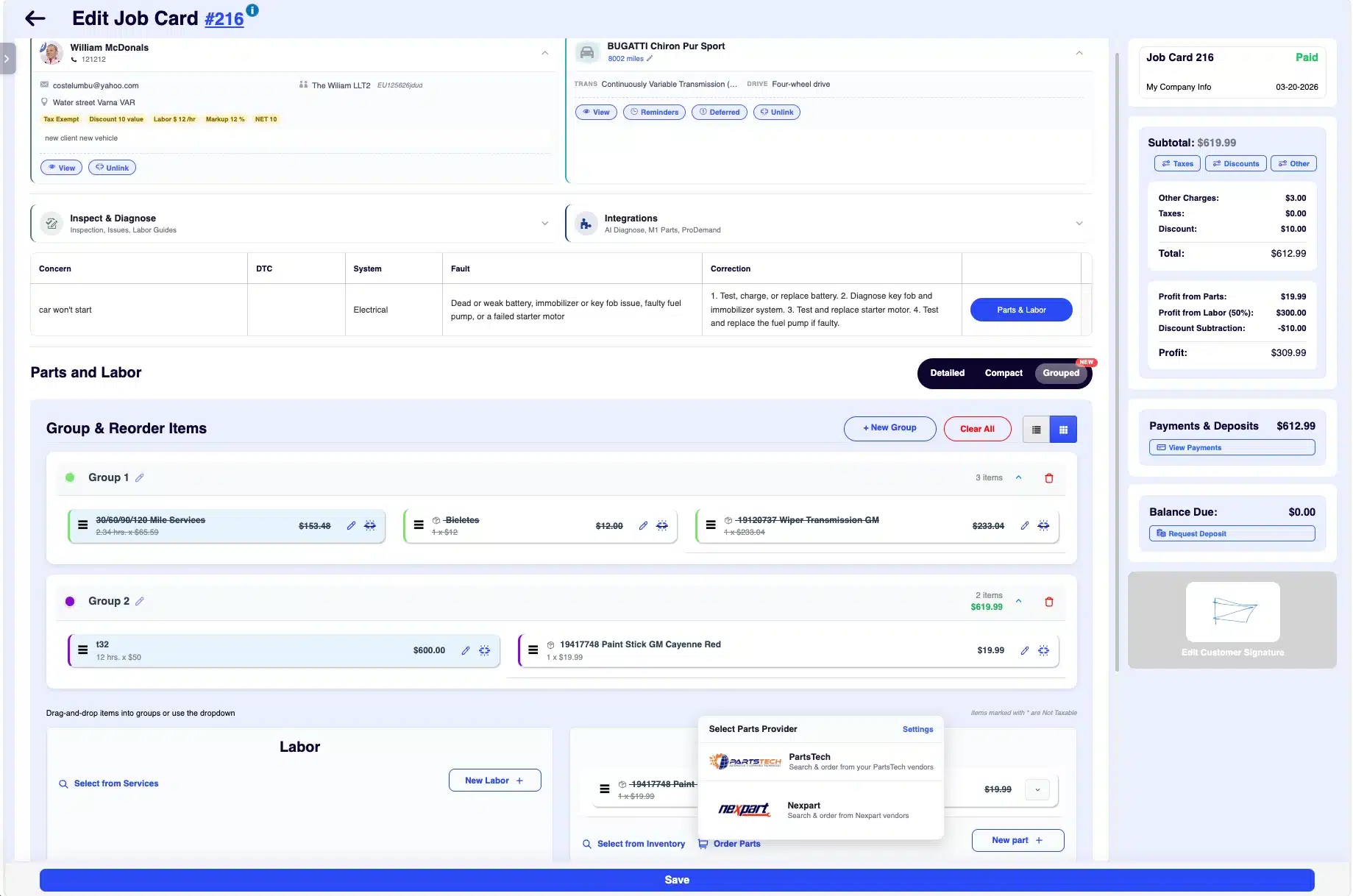
Job card with vehicle info filled in
Step 2 & 3

Tap “Order Parts” & Choose Nexpart

Find the Order Parts button in the parts section of your document. A dropdown will appear showing your available parts providers.

Tap Nexpart from the dropdown. ARI will open the Nexpart parts catalog in a new window. If you have a VIN on the document, the vehicle will be pre-selected automatically.
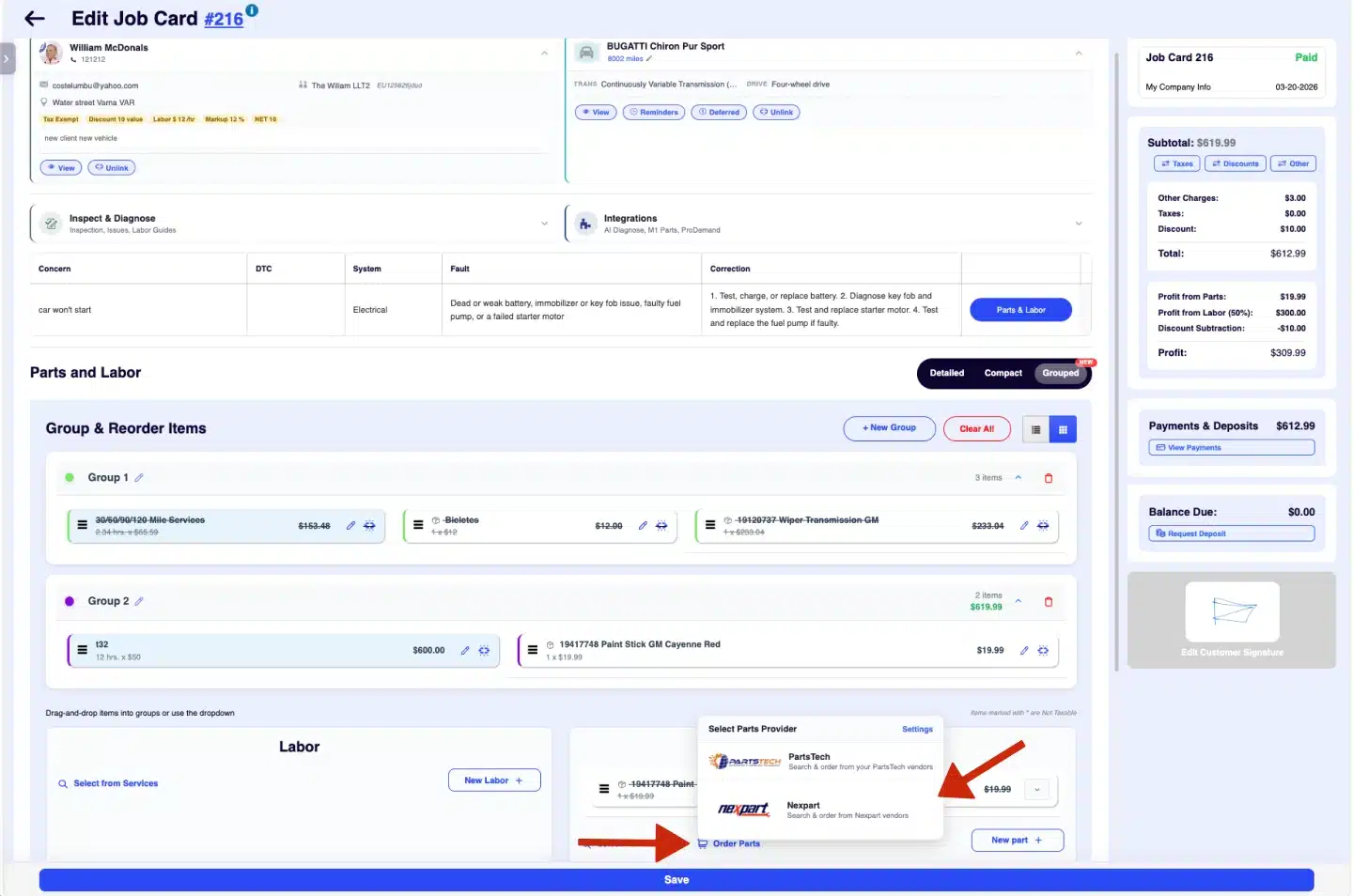
Order Parts dropdown showing PartsTech and Nexpart options
Step 4

Search and add parts to your cart

Use the Nexpart catalog to search for parts. You can browse by category, search by part number, or use interchange lookups. Add the parts you need to your cart.

If your shop is connected to multiple vendors, Nexpart’s Multi-Vendor system lets you see pricing and availability from all of them at once.
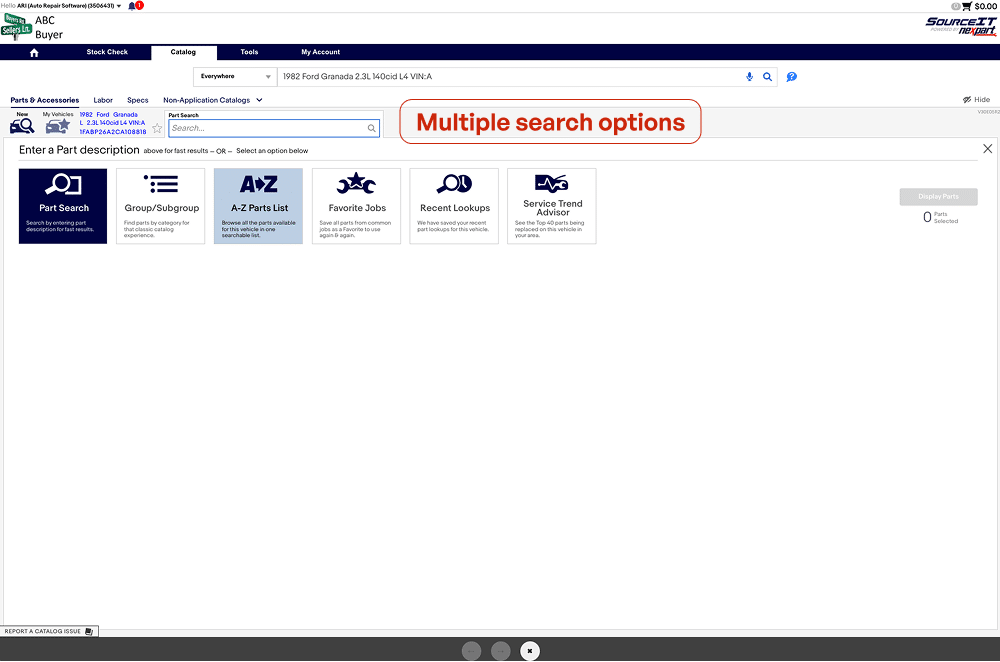
Nexpart catalog with parts in cart
Step 5

Close the Nexpart window

When you’re done selecting parts, simply close the Nexpart window. ARI automatically pulls your cart contents back into the app.
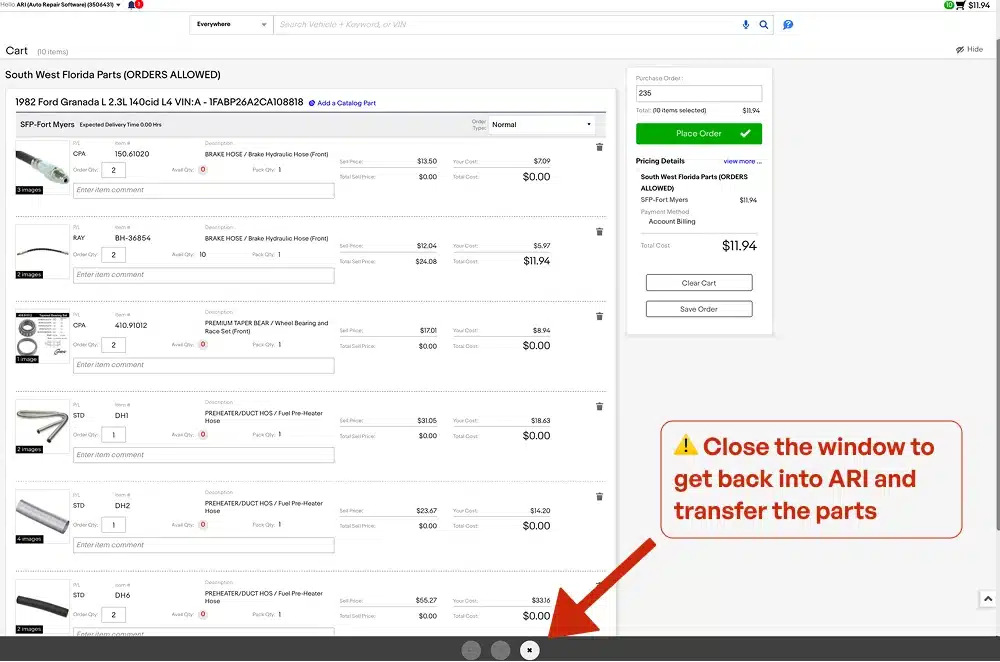
Closing the browser and returning to ARI
Step 6

Choose your pricing

ARI will show you a pricing selection screen with four options:
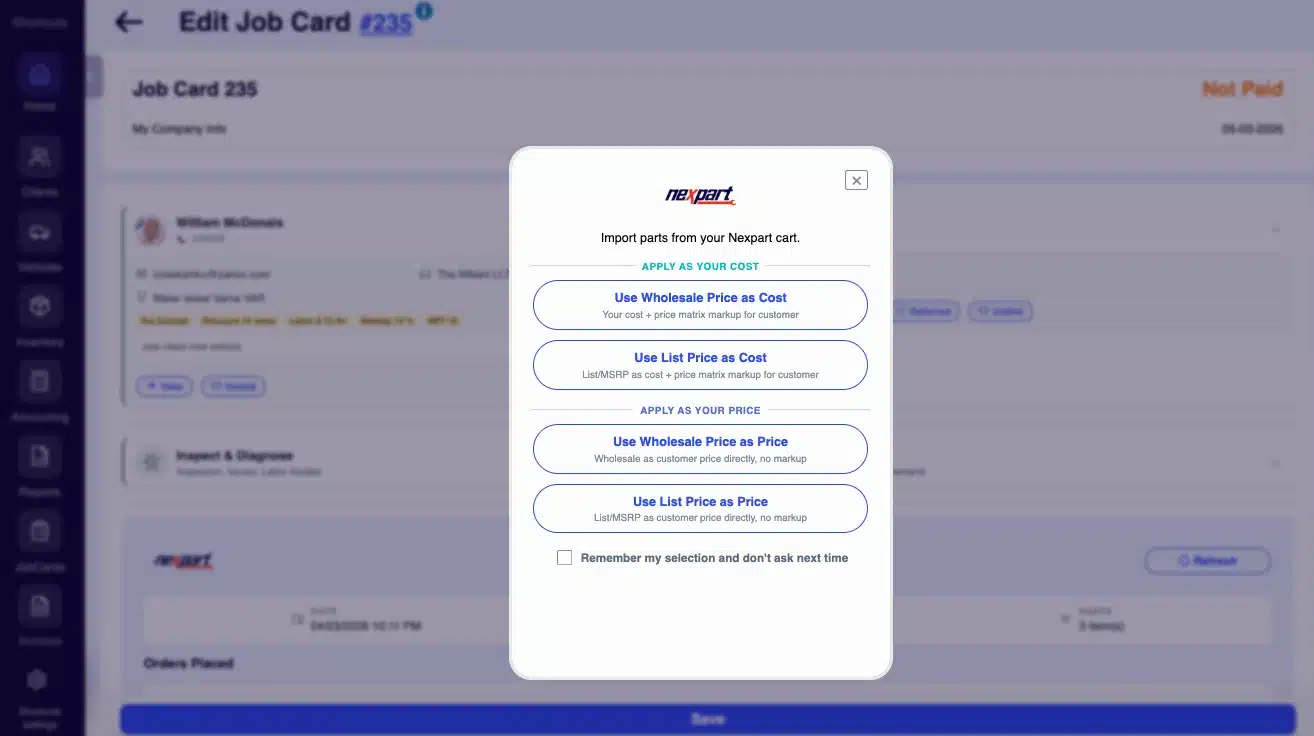
  • Wholesale — Import parts at the price your shop pays the supplier (your cost).
  • List Price — Import parts at the manufacturer’s suggested retail price.
  • Custom Markup — Apply your shop’s price matrix to automatically mark up from wholesale.
  • Don’t Import Prices — Import the parts without any pricing (fill in later).
Nexpart price selection modal with four options
Step 7

Parts are added to your document

Your selected parts appear as line items on the invoice, estimate, or job card — complete with descriptions, quantities, and pricing. If any parts have core charges, those are added as separate line items automatically.
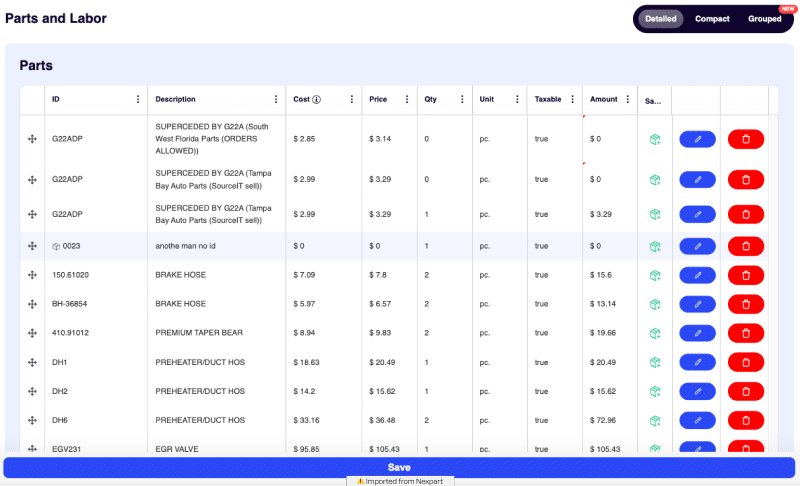
Invoice with Nexpart parts imported as line items

Place the Order

After quoting the parts, place the actual order with your supplier — without leaving ARI.

Step 1

Review the Nexpart Session panel

After importing parts, a Nexpart Session panel appears on your document showing the parts you quoted and their details.
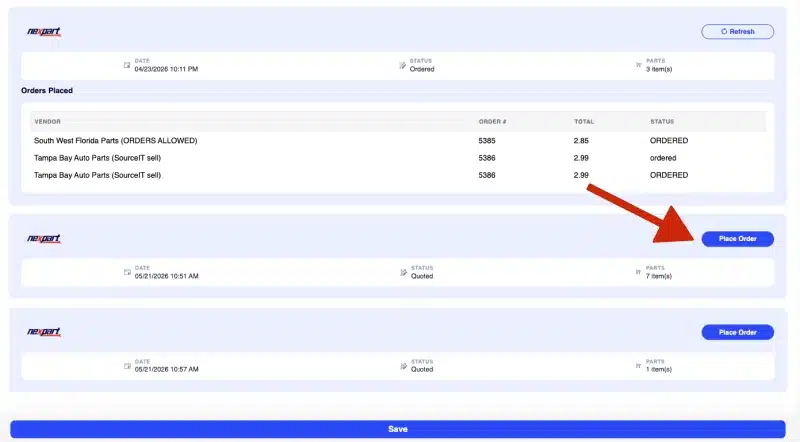
Nexpart session panel on invoice
Step 2

Tap “Place Order”

When you’re ready to order, tap the Place Order button. ARI will re-open Nexpart with your quoted parts pre-loaded in the cart.
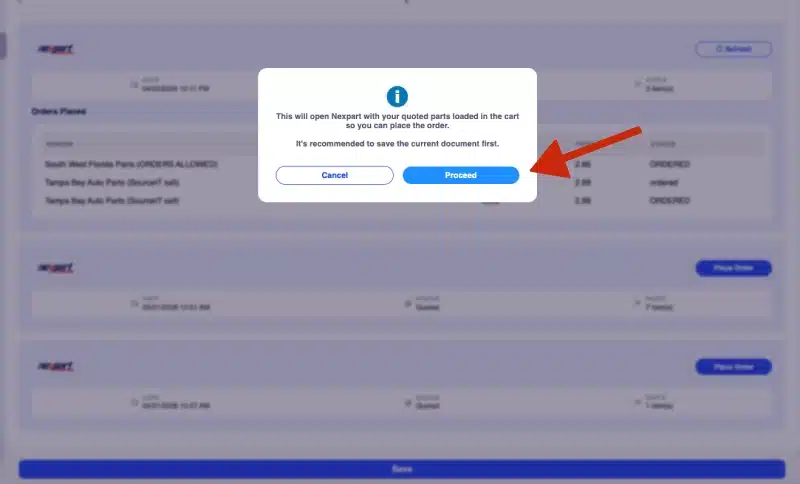
Place Order button on Nexpart session panel
Step 3

Confirm and submit in Nexpart

Review the order in Nexpart, confirm quantities and shipping details, and submit. Nexpart handles the order with your supplier(s).
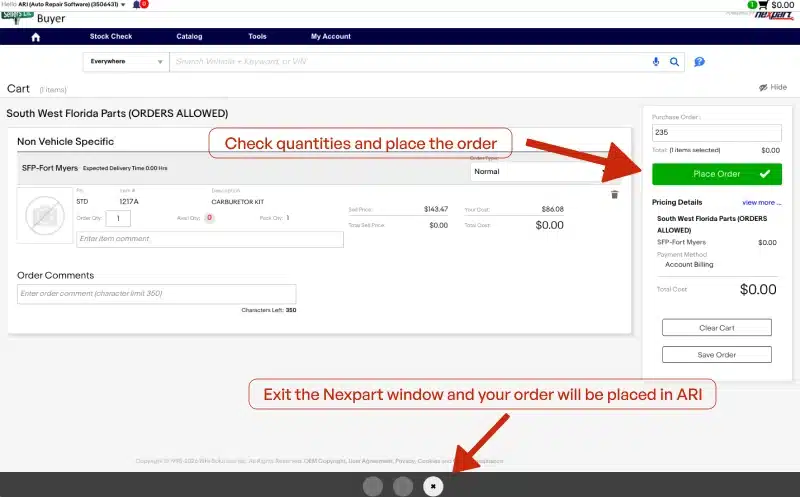
Nexpart order confirmation screen
Step 4

Order confirmation in ARI

Close the Nexpart window and ARI will pull back the order confirmation details — including order numbers and status for each vendor. This information is saved on your document for future reference.
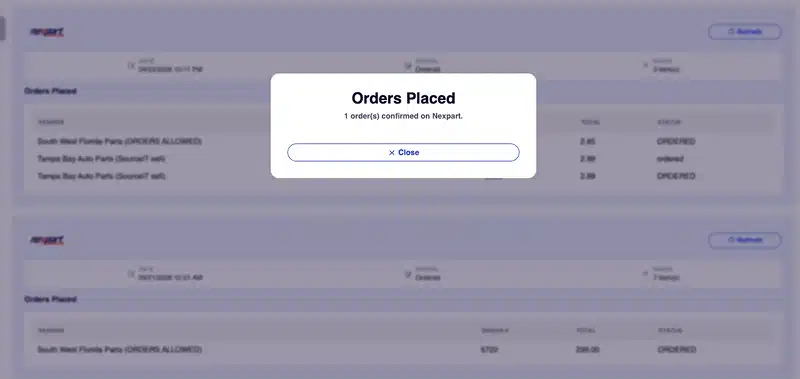
Order confirmation details in ARI session panel

Order Parts for Inventory (Purchase Orders)

Need to stock up your shelves? You can also use Nexpart from ARI’s Purchase Orders in the Accounting module.

Step 1

Create a purchase order

Go to Accounting > Purchases and create a new purchase order.
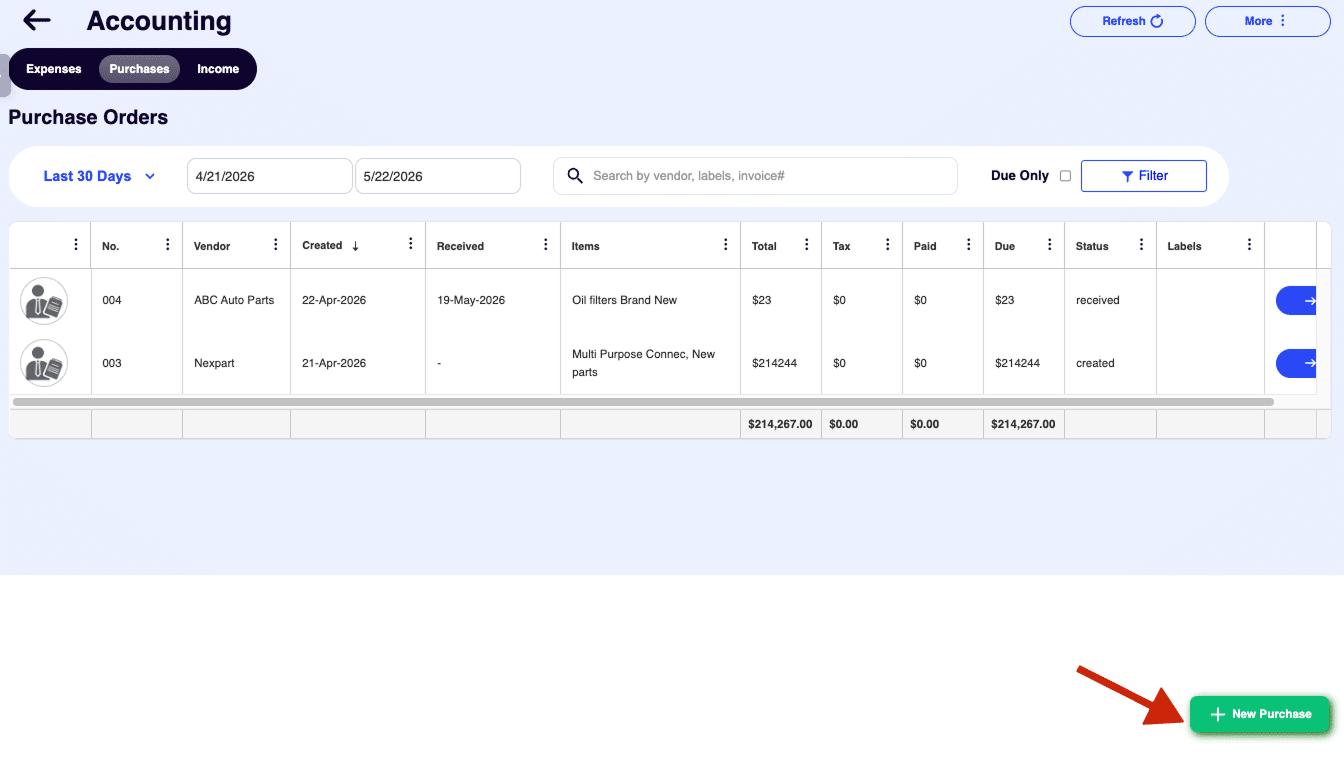
New purchase order in ARI
Step 2

Tap “Order Parts” and select Nexpart

Just like with invoices, tap the Order Parts button and choose Nexpart from the dropdown.
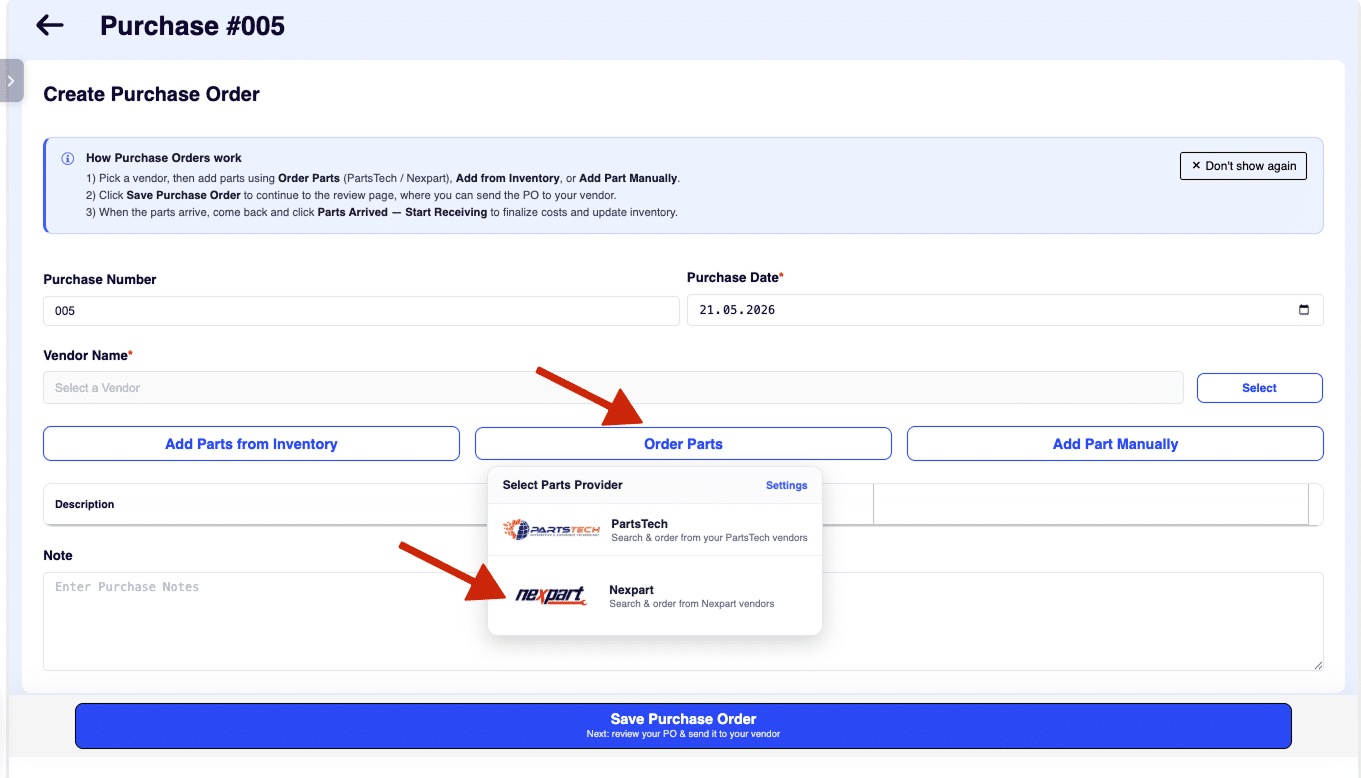
Order Parts dropdown on purchase order
Step 3

Browse and select parts

The Nexpart catalog opens. Search for the inventory items you need and add them to your cart.
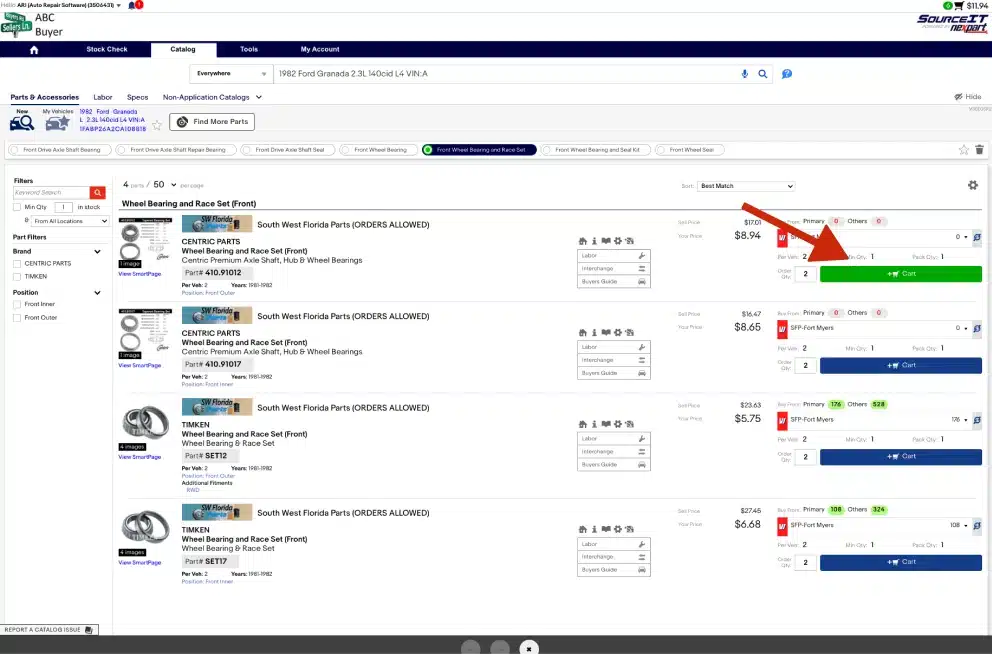
Nexpart catalog for inventory ordering
Step 4

Import and choose pricing

Close the Nexpart window. ARI imports the parts and asks you to choose between Wholesale, List Price, or Don’t Import Prices.
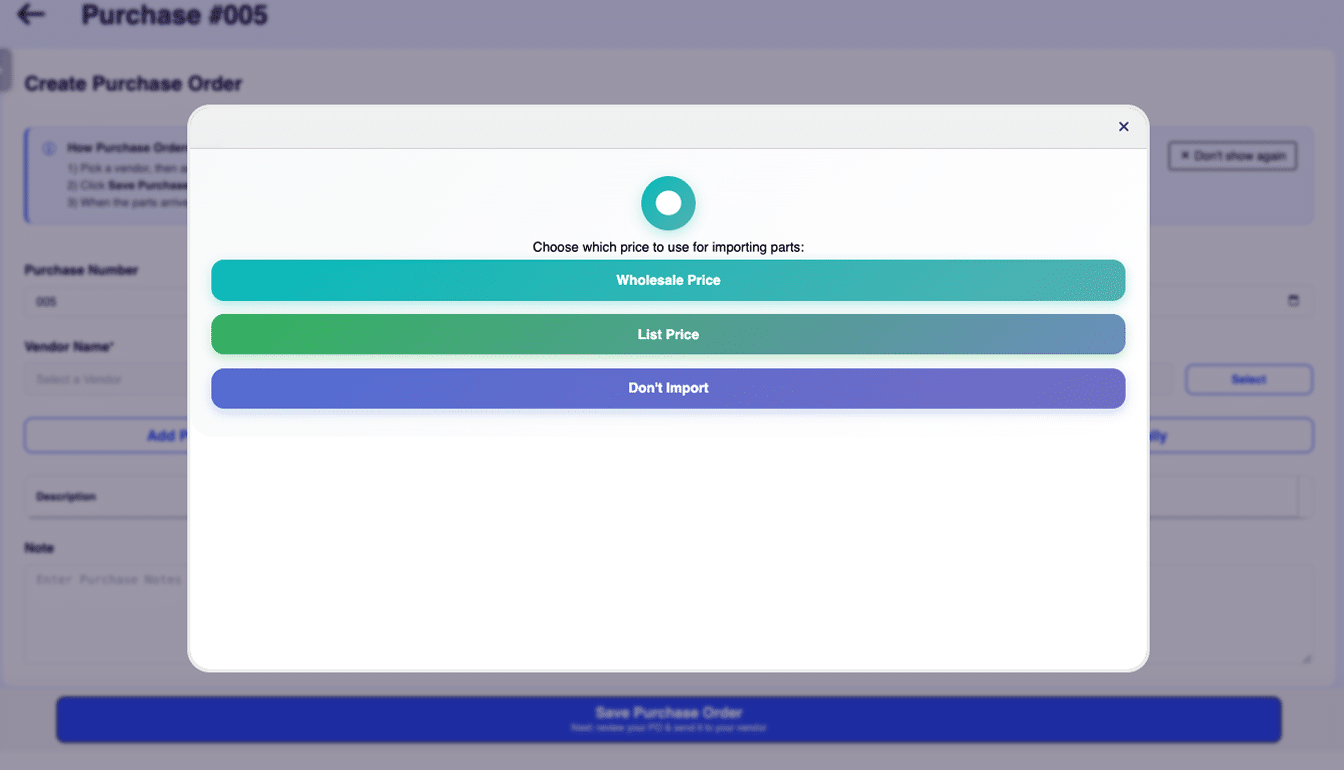
Purchase order price selection
Step 5

Review and place the order

Your purchase order is populated with the parts. The vendor name is automatically set from your Nexpart supplier. Use the session panel to place the order when ready — same flow as invoices.
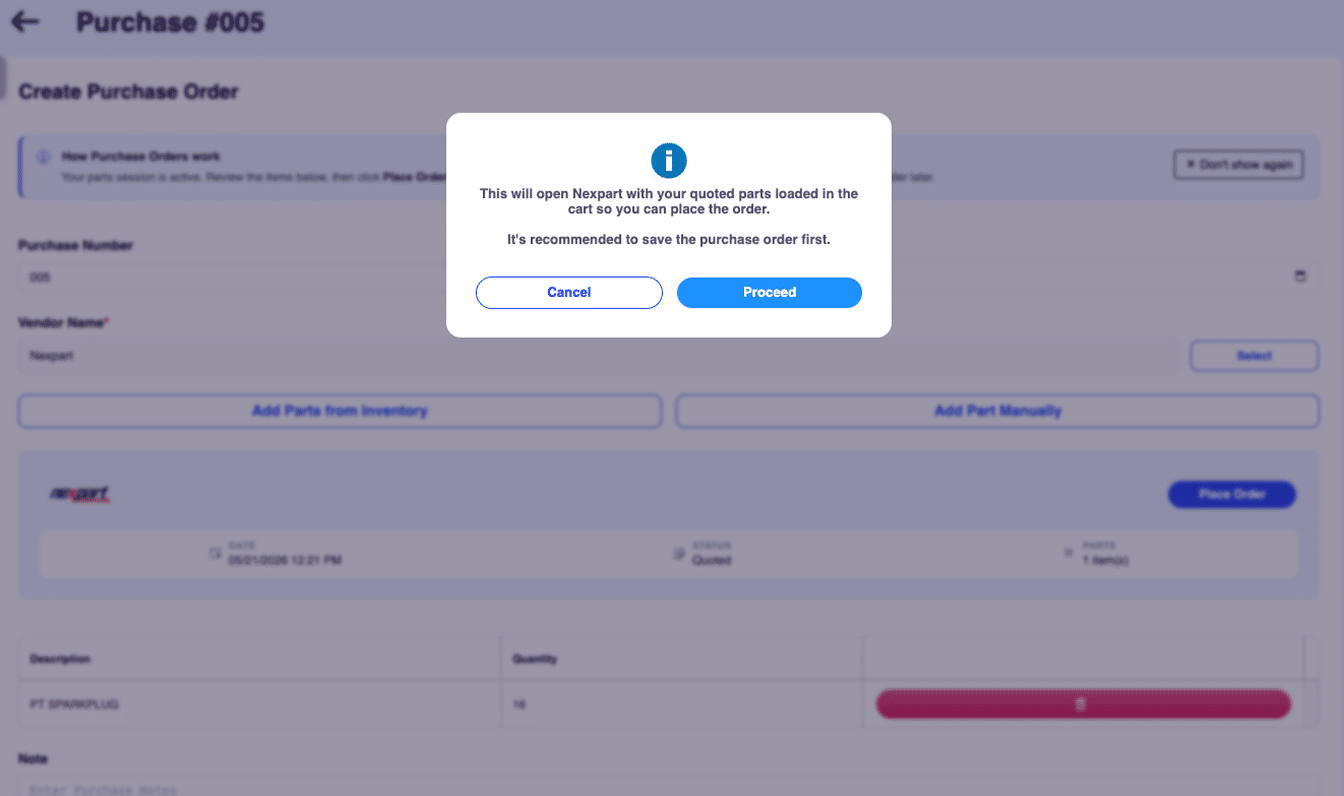
Completed purchase order with Nexpart parts

Tips for Getting the Most Out of Nexpart

  • Always add the VIN — When you have a vehicle’s VIN on the job card, ARI sends it to Nexpart so the catalog opens with the correct vehicle. This saves time and reduces ordering mistakes.
  • Use the session panel — After importing parts, the session panel keeps track of everything. You can place orders, view confirmations, and reference what was quoted — all in one place.
  • Multi-vendor advantage — If your Nexpart account is connected to multiple suppliers, you’ll see pricing from all of them. Mix and match to get the best price on every part.
  • Core charges are handled automatically — When a part has a core charge, ARI imports it as a separate line item so your invoices stay accurate.
  • Works alongside PartsTech — Nexpart and PartsTech are independent integrations. You can use both in your shop and choose the best option for each job.

Frequently Asked Questions

Connection & Account Issues

I’m getting an error when I try to connect my Nexpart account in ARI.

Double-check that you’re entering the correct username and password — these are the same credentials you use to log in at nexpart.com. If you recently changed your Nexpart password, make sure you’re using the new one. If the problem persists, your Nexpart account may be expired or restricted — contact Nexpart support to verify your account status.

I connected my account before, but now it says I’m not connected.

Your Nexpart credentials may have been cleared during a settings update or account change. Simply go back to Settings > Parts Procurement > Nexpart and re-enter your username and password to reconnect.

Can I use the same Nexpart account on multiple devices?

Yes. Your Nexpart credentials are tied to your ARI user account, so they’ll work on any device where you’re logged into ARI — phone, tablet, or desktop.

Ordering & Cart Issues

I closed the Nexpart window but no parts appeared on my invoice.

This usually means you browsed the catalog but didn’t add anything to your cart before closing. Go back and make sure you add parts to your Nexpart cart before closing the window. ARI pulls the cart contents when the window closes — if the cart is empty, there’s nothing to import.

I placed the order inside Nexpart before closing the window. Will my parts still import?

Yes. If you completed checkout inside Nexpart, ARI detects that the cart is empty and automatically checks for your order confirmation instead. Your ordered parts will still be imported into your document.

Some parts imported but others are missing.

Make sure all the parts you wanted were in your Nexpart cart before closing the window. If you were shopping across multiple vendors, check that parts from all vendors were added. ARI imports from all vendor carts at once, so nothing should be left behind unless it wasn’t in the cart.

The prices on my invoice don’t match what I saw in Nexpart.

This depends on which pricing option you selected during import. Wholesale uses the price your shop pays the supplier, List uses the manufacturer’s retail price, and Custom Markup applies your shop’s price matrix on top of the wholesale price. If you chose the wrong option, delete the imported parts and re-order to select a different pricing mode.

What are the extra “Core Charge” line items on my invoice?

Some parts (like alternators, starters, or brake calipers) come with a refundable core charge — a deposit you get back when you return the old part to the supplier. ARI imports these as separate line items so your invoicing stays accurate and transparent to your customers.

Vehicle & Catalog Issues

Nexpart opened but didn’t pre-select my vehicle.

ARI passes the VIN to Nexpart to auto-select the vehicle. This only works if the vehicle on your job card has a valid VIN (at least 11 characters). If the VIN is missing or too short, Nexpart will open to the general catalog and you’ll need to select the vehicle manually.

I got a warning about “no vehicle selected” — can I still use Nexpart?

Yes. The warning is just a heads-up that the Nexpart catalog will open without a vehicle pre-selected, so you’ll need to choose one manually. You can still search, add parts to your cart, and import them into ARI as normal.

Can I use Nexpart on a purchase order without a vehicle?

Absolutely. Purchase orders don’t require a vehicle. Nexpart will open to the general catalog where you can search by part number, category, or keyword.

General Questions

What’s the difference between Nexpart and PartsTech in ARI?

Both are parts ordering integrations, but they connect you to different supplier networks. Nexpart uses WHI Solutions’ network of aftermarket, OE dealer, recycled, and specialty vendors. PartsTech connects to its own set of suppliers. You can have both set up in ARI and choose whichever one has better pricing or availability for each job.

Do I need to pay extra for the Nexpart integration?

The Nexpart integration is included with your ARI subscription at no additional cost. You will, however, need an active Nexpart account — contact Nexpart for their pricing and supplier setup.

Can I use Nexpart on the desktop/browser version of ARI?

Yes. The Nexpart catalog opens in a browser window on desktop and in an in-app browser on mobile. The experience is the same on all platforms.

I placed an order — how do I track it?

After placing an order, the confirmation details (order numbers, status, vendor info) are saved on your document in the Nexpart Session panel. For shipping and delivery tracking, check directly with your supplier or log in to your Nexpart account at nexpart.com.

Can I cancel or modify an order placed through Nexpart?

Orders are submitted directly to your supplier through Nexpart. To cancel or modify, contact the supplier directly. ARI shows the order confirmation details on your document so you have the order numbers handy.

Need Help?

Our support team is here to help you get set up and make the most of the Nexpart integration.

Ready to streamline your parts ordering?

Get started with ARI today and connect Nexpart in minutes.

Available only in the US and Canada.

Client Management

Add clients, vehicles & all the details that are relevant to them

Vehicle Management

Create detailed inspections with checklists, damage reports

Inventory Management

Manage your parts, tires, business assets, and all other important items.

Job Cards

Track labor progress, start & stop work clocks, approve & deny services.

Estimates

Create professional quotes for your auto repair clients

Invoices

Generate professional invoices for your auto shop’s clients

Inspections

Generate damage reports & attach pictures to your auto inspections

Appointments

Let your clients book your services online from the comfort of their home

Service Reminders

Earn return customers by reminding them when service is due

Accounting

Create purchase orders, track your expenses, and monitor your profits

OBD Scanner

Read Engine Error Codes with ARI monitor car’s parameters live

Reports & Stats

Reports for your business performance & export the data

Payments

Never miss a payment keep an eye on your invoice billing process

Marketing

Reach your core customers & market business across different channels

Vendors

Manage vendors, partners & orders for a streamlined repair experience

Time Tracking

Monitor and label the activity of multiple employees

Payment Processing

Receive payments on your Online Invoices with the world’s most renowned payment networks

Parts Ordering with
PartsTech

Order parts easily with PartsTech and ARI! Smooth and reliable parts procurement process.

M1 Labor Guides and
Estimates

Every mechanic benefits from quality Repair Guides and Car Repair Estimates.

Vehicle History with
CarFax

Get Service History Instantly. Decode VINs and Plates with Accurate Data from a Leading Supplier.

Car Diagnose with
CarMD

Get Diagnostic & Maintenance Info. Access Diagnosis, Solutions, and Problem Predictions.

Accounting with
QuickBooks

Sync ARI invoices to QuickBooks Online. Manage customers and inventory.

AI Labor
Guides

Get detailed labor guides, labor times, and estimates from the world's first AI labor guides system.

POS Terminal from 360Payments

Process In-Person Payments On The Spot. Geared towards auto repair businesses.

Customer Financing With Wisetack

ARI has partnered with Wisetack to offer your clients extra payment options for auto repair services.

Get Started

A complete guide to setting up and running your auto repair business

Client Portal

ARI’s client portal lets clients easily stay informed when they visit you

Multiple Users

How to add multiple users to your ARI Profile

Update ARI

You must ensure you keep your app updated all the time

Profile Setup

ARI offers features and settings tailored for auto repair services

Blog

Welcome to ARI's blog for updates, articles, and guides

ARI Awards

Here are our most notable achievements over the years.

Online Documents

Get the most out of your client management with our online documents

ARI Demo

Test the features and see if it’s the right fit for you

ARI Videos

Welcome To ARI's Official Video Library

ARI Affiliate Program

Earn rewards and ARI credits by referring our app to friends