

Adding a new client at the counter can interrupt an otherwise smooth drop-off. You have to capture a name, phone number, and email address, then collect the vehicle year, make, model, and VIN while the customer waits.
ARI Customer Intake Links move that work before the visit. Send a private, one-time link and let the client enter their own contact and vehicle details from their phone. When they submit the form, ARI creates the new client and vehicle records for you.
What is a customer intake link?
A Customer Intake Link opens a secure web form branded with your shop’s name and logo. The client does not need to download an app, create an account, or remember a password.
The form asks for the same customer and vehicle information used by ARI’s online booking page. It also supports VIN scanning and QuickFill, helping the client enter the vehicle information from the car in front of them.
Each link is unique and single-use. You choose an expiration period from 24 hours to 30 days, and you can revoke an active link whenever needed.
How Customer Intake Links work in ARI
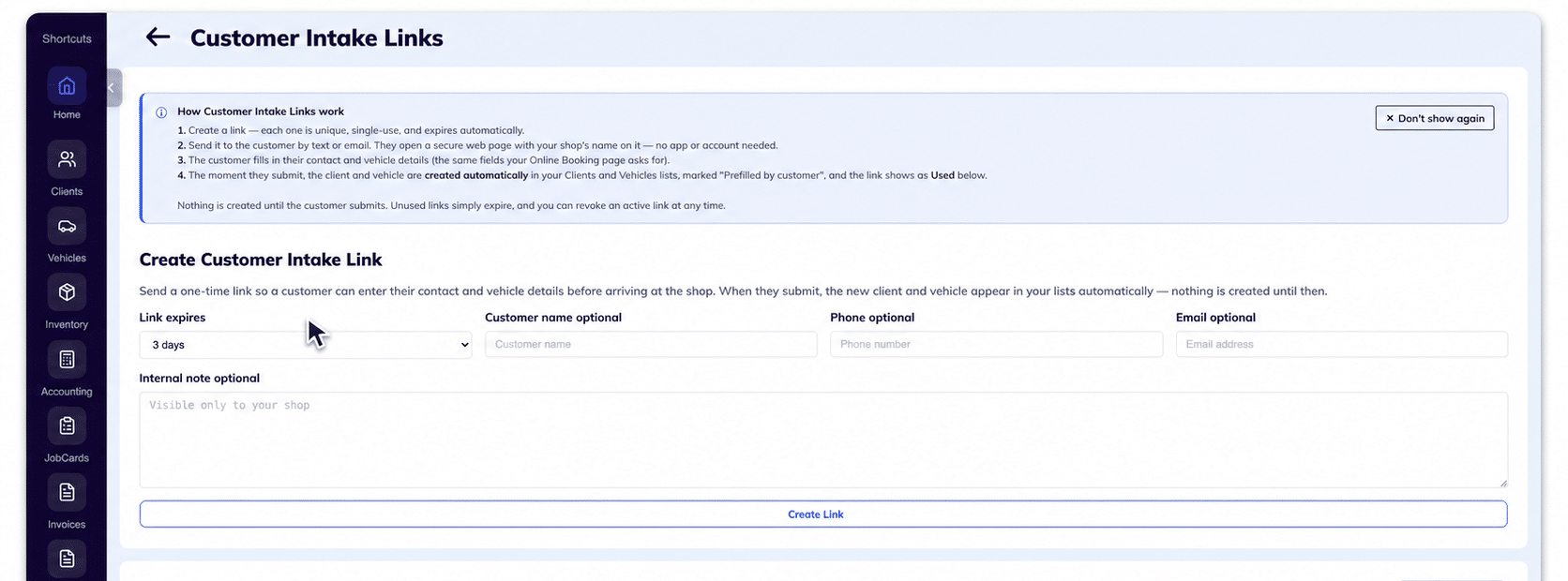
- Open Customer Intake Links. Go to Profile > Customer Intake Links. You can also generate a link from the New Client or New Vehicle screen, or from the More menu on the Clients and Vehicles lists.
- Choose the expiration. Set how long the link should remain active. You can optionally add the customer’s name, phone number, email address, and an internal note.
- Create and send the link. Copy it or send it by text or email directly from ARI.
- Let the client complete the form. They enter their contact and vehicle details on a clean web page from any modern phone or computer.
- Review the new records. After submission, the client and vehicle appear automatically in your Clients and Vehicles lists, marked Prefilled by customer. The link changes to Used and cannot be submitted again.
A smoother before-and-after workflow
Before: The client arrives, then you collect and type their contact and vehicle information while the repair order is waiting to move forward.
After: You send the link before the appointment. The client completes the form when it is convenient, and the submitted records are already in ARI before drop-off.
This keeps routine intake from becoming a bottleneck and reduces the chance of errors caused by misheard names, phone numbers, or VIN characters. The client still needs to enter accurate information, so review important details before using them on an estimate or invoice.
If your shop also accepts appointments online, Customer Intake Links complement ARI’s appointment and online-booking tools. Use online booking when the customer is scheduling a visit, and use an intake link when you need client and vehicle details without requiring a booking.
You stay in control of every link
Nothing is created in your account until the customer submits the form. If they never use it, the link expires automatically. If plans change, you can revoke an active link from the Customer Intake Links page.
That makes the workflow useful for scheduled drop-offs, walk-ins who will return later, mobile-mechanic appointments, and any new client whose information you want ready before the job begins.
Try it with your next new client
Open ARI, go to Profile > Customer Intake Links, and send a link before the next appointment. If you want to see the complete workflow first, watch the Customer Intake Links video tutorial.
You can also explore ARI’s client-management tools or follow the ARI getting-started guide.