


When a customer is standing at the counter waiting for a number, even a short delay can feel long. And when a parts-and-labor result is too generic to quote from, the service advisor or technician still has to rebuild the list before it can become an estimate.
The latest ARI Labor Guides improvements focus on two practical outcomes: faster answers and more vehicle-specific starting points. The workflow is familiar, but current results are designed to reduce waiting and give shops a clearer list to review.
This is not a replacement for technician judgment or authoritative service information. It is a better starting point for turning a selected vehicle and service into reviewed parts, labor, maintenance, and fluid information.
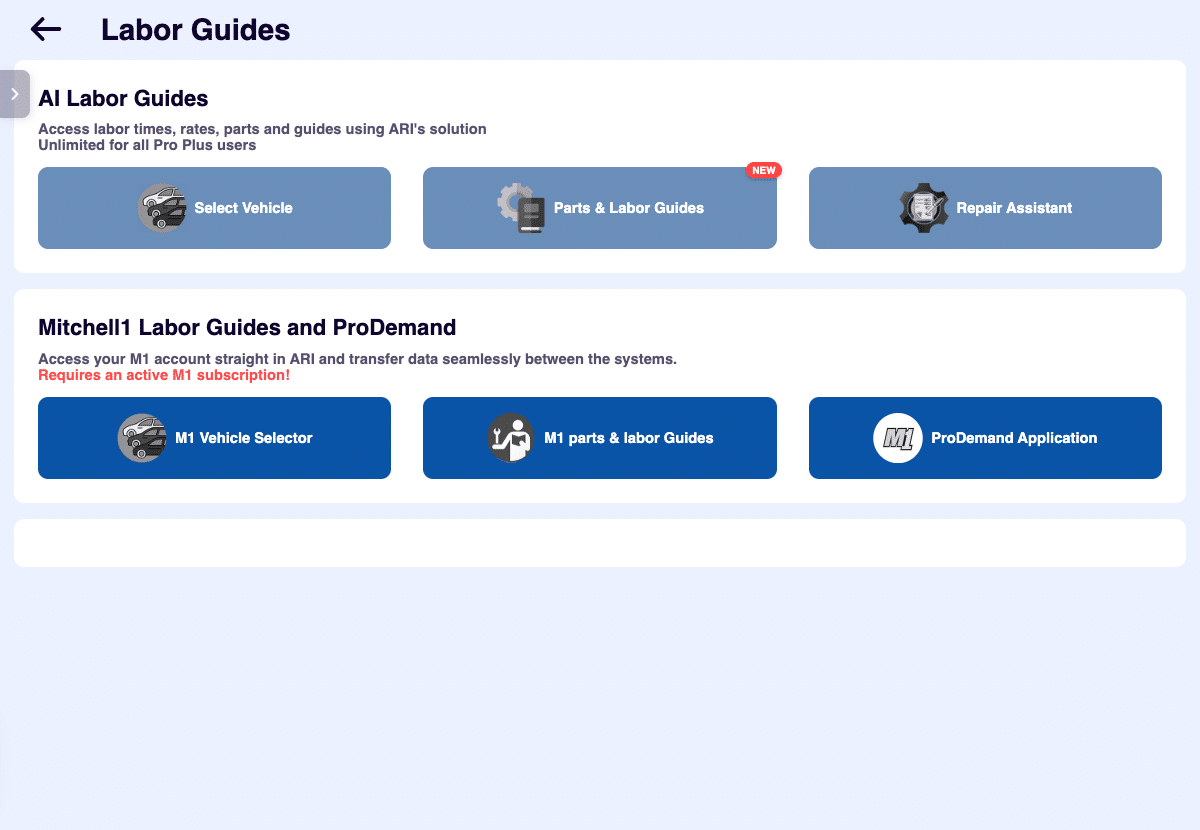
Nothing changed in how you use it
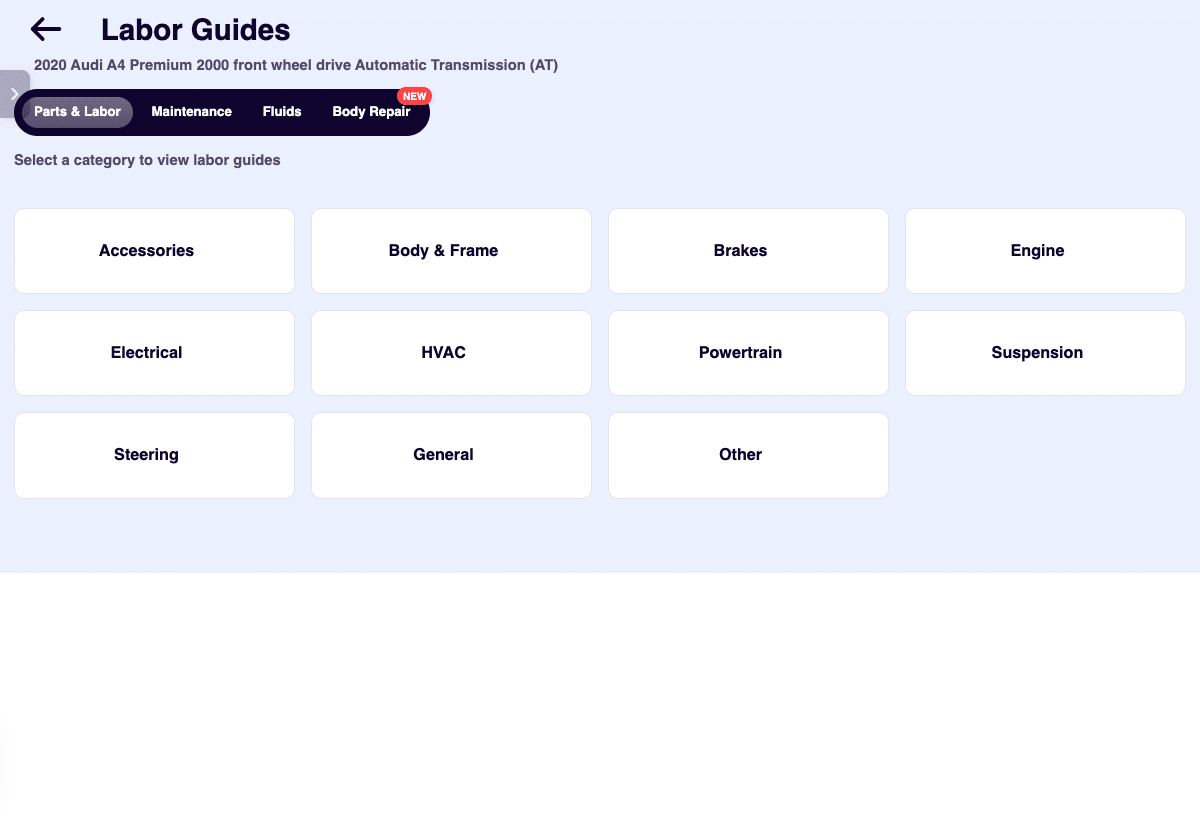
Open Labor Guides, pick the vehicle and the service, and go — same taps as always. What changed is what comes back, and how quickly.
| What you’re pulling up | Before | Now |
|---|---|---|
| Full parts and labor list | 35–50 seconds | 15–22 seconds |
| Maintenance schedule or fluid service | 18–20 seconds | 9–17 seconds |
| Probable cause, correction, or repair steps | 9–19 seconds | Under 7 seconds |
More specific results can mean less cleanup
A generic label such as “timing kit” is rarely enough to prepare a complete quote. A useful starting list may need to separate chains, guides, tensioners, seals, gaskets, solenoids, fluids, and related labor operations.
ARI Parts & Labor results can include:
- Itemized parts and part numbers when that information is available;
- Labor-time estimates for the selected operation;
- Required fluids and specifications;
- Maintenance schedules and procedures; and
- Localized parts and labor pricing shaped by the shop’s market and currency.
For the best part-number result, use Parts & Labor for the selected service. If the service is not listed, use Custom Service and describe the work specifically. Repair Assistant is useful for fast follow-up questions, but critical part numbers still need to be checked before ordering or quoting.
See the complete ARI AI Labor Guides and Estimates overview for the wider parts, maintenance, fluids, body repair, and electrical workflow.
The selected vehicle details still matter
Year, make, model, engine, trim, drivetrain, and transmission can change the correct operation, part, fluid, or labor allowance. Complete the vehicle configuration before generating the result, especially on vehicles with multiple engines or drivetrains in the same model year.
That context is also why a precise service selection matters. The same engine family can use different components, capacities, and procedures across applications. A clear vehicle record and a specific service request give the guide more useful context than a broad description alone.
Treat labor time as a starting point, not an automatic quote
A better result still needs a shop review. Labor times can vary by data source, vehicle configuration, included operations, location, and real-world working conditions.
Labor hours closer to book time. On one lifter job, the old lookup came back at 22.5 hours. The new one said 14.5, right in line with published book time. Over-quoting loses you the job. Under-quoting eats your margin.
Before sending the estimate, confirm the exact vehicle and operation, read what the allowance includes, and adjust for corrosion, access, modifications, travel or setup time, and other conditions your shop can document. Over-quoting can lose the job; under-quoting can erase the margin.
It also helps to keep planned and recorded time separate. Read our guide to book time versus actual technician time for a practical way to compare the estimate with what happened in the bay.
A practical review workflow for the next estimate
- Confirm the vehicle. Check the year, make, model, engine, trim, drivetrain, and transmission.
- Select the exact service. Use the closest defined operation or write a detailed Custom Service request.
- Generate Parts & Labor. Review the suggested parts, quantities, labor times, fluids, and related operations.
- Verify the critical details. Confirm part numbers with the supplier or catalog and check safety-critical specifications and procedures against authoritative service information.
- Adjust for the job in front of you. Account for vehicle condition, access, overlap, shop labor policy, and approved diagnostic work.
- Transfer the selected items. Move the reviewed parts and labor into an Estimate, Invoice, or Job Card, then complete the customer-facing quote.
What to verify before anything leaves the shop
Use the generated result as a structured starting point, then check:
- Part-number fitment, supersessions, quantity, and availability;
- Fluid type, capacity, and model-year application;
- Labor overlap and operations that are included or excluded;
- Vehicle configuration, drivetrain, and transmission details; and
- Safety-critical torque values, electrical procedures, airbag work, and hybrid or high-voltage requirements.
That final review is what turns a fast lookup into a professional estimate the shop can stand behind.
Run the next job through the updated workflow
If you already use ARI, open Labor Guides on the next vehicle and compare the result with the job information you normally verify. If you are evaluating ARI for your shop, review the current ARI plans and features.