
The goal of a QuickBooks integration is not to copy everything from one system into another.
It is to move the right financial records, once, with consistent names, accounts, taxes, and document types—while leaving the operational detail where your shop actually uses it.
Repair shop software and QuickBooks Online have different jobs. When the boundary is clear, an integration can reduce duplicate entry. When the boundary is vague, it can create duplicate customers, mismatched totals, disconnected payments, and a cleanup project for your bookkeeper.
A clean auto repair QuickBooks integration depends on deciding which system owns each record before anything is automated.
Quick answer: Your shop system should usually remain the operational source for vehicles, appointments, inspections, repair notes, technician activity, and work in progress. QuickBooks Online should remain the accounting source for the chart of accounts, bank reconciliation, financial statements, and tax/accounting configuration. Sync approved financial records—such as customers, estimates, invoices, mapped line items, payments, vendors, and expenses—only when your workflow has a clear owner for each record.
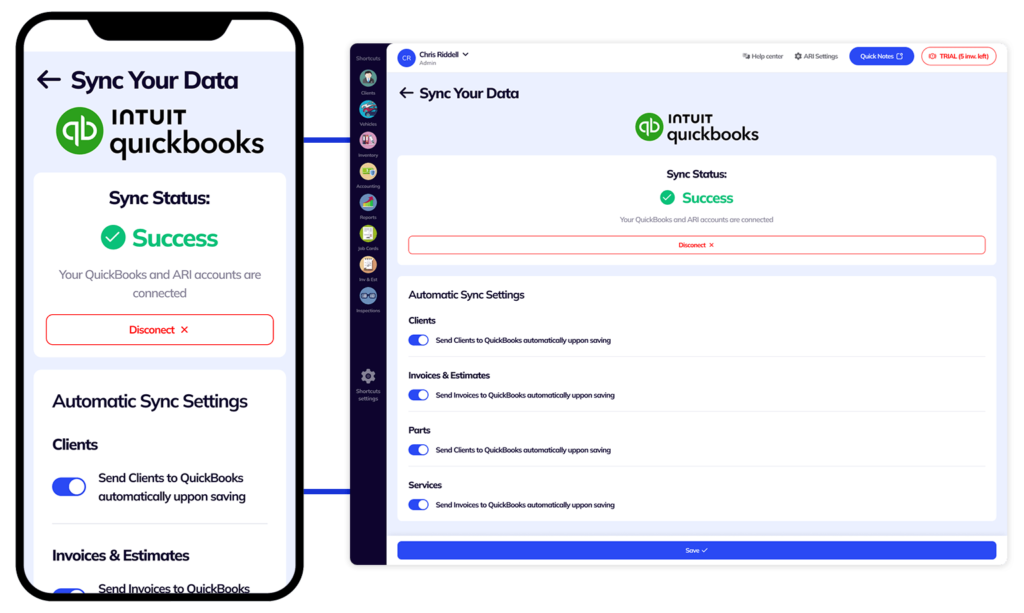
ARI lets shops configure which customer, estimate, invoice, parts, and service records are prompted for QuickBooks Online sync.
Two systems, two jobs
Repair shop management software
Your shop system is built around the service visit:
- Customers and vehicles
- Appointments and intake
- Estimates and repair authorization
- Work orders and technician status
- Digital vehicle inspections
- Photos and diagnostic notes
- Parts and labor on the job
- Vehicle service history
- Customer communication
- Final invoices and payments
QuickBooks Online
QuickBooks is built around the books:
- Chart of accounts
- Income and expense categories
- Accounts receivable
- Bank and credit-card feeds
- Deposits and reconciliation
- Sales-tax accounting
- Vendor and expense records
- Financial statements
- Accountant and bookkeeper access
- Payroll when separately configured
QuickBooks can create estimates and invoices, but that does not make it a complete shop-floor workflow. Shop software can track income and expenses, but that does not automatically make it the accounting ledger your accountant uses.
ARI keeps the operational side connected through its auto repair invoicing and shop accounting tools, while QuickBooks remains available for the accounting workflow described below.
The integration works best when each system stays responsible for the job it does well.
Start with a source-of-truth matrix
Before connecting anything, decide which system owns each record.
| Information | Recommended primary system | What may sync |
|---|---|---|
| Customer identity and contact details | Choose one operational master—usually the shop system | Customer record to QuickBooks |
| Vehicle and service history | Shop system | Selected VIN, mileage, or unit details on financial documents when supported |
| Appointments and work status | Shop system | Usually nothing |
| Inspection photos and technical notes | Shop system | Usually nothing |
| Estimate | Shop system when it begins the repair workflow | Estimate to QuickBooks as an estimate, if supported and useful |
| Final invoice | Shop system | Invoice and mapped line items to QuickBooks |
| Payments | Shop/payment workflow, then accounting | Payment linked to the correct QuickBooks invoice and deposit account |
| Parts and service item list | Deliberate shared mapping | Item identity, type, and account mapping |
| Physical stock quantity | Usually the system used for daily parts control | Only if the integration supports the exact inventory workflow you need |
| Vendors and expenses | Decide with your bookkeeper | Vendor and itemized expense records when configured |
| Chart of accounts | QuickBooks Online | Account references used by the integration |
| Bank reconciliation | QuickBooks Online | Nothing should overwrite the reconciliation workflow |
| Payroll | Payroll/accounting system | Do not assume employee time or expenses equal payroll sync |
This is a starting point, not accounting advice for every business. Review the final design with the person responsible for your books.
What normally should sync
Customer records
A financial document needs a customer in QuickBooks. Choose a consistent display name and matching rule before the first sync.
Clean duplicates first. Intuit's guidance on duplicate customers warns that merging moves transactions and is permanent, so prevention is much easier than repair.
Estimates—as estimates
If your accountant wants accepted or material estimates in QuickBooks, the integration should preserve the document type. An estimate is not accounts receivable, and it should not appear as a finalized invoice merely because it crossed systems.
Not every preliminary quote must sync. Decide whether you will send all estimates, only customer-approved estimates, or none.
Finalized invoices—as invoices
The invoice is the core record most shops need in QuickBooks. It should carry the correct customer, date, document number, items, quantities, labor and parts categories, discounts, fees, tax treatment, total, and payment status supported by the integration.
Create the invoice in one place. Editing the same financial fields independently in both systems invites mismatches.
Mapped parts, labor, and other sale items
QuickBooks needs to know which income or asset account each item affects. Set mappings for categories such as:
- Labor
- Parts
- Sublet work
- Shop supplies or fees
- Tires
- Environmental or disposal charges where applicable
- Discounts
- Other sales categories your accountant uses
A descriptive line on a repair order is not automatically a well-mapped accounting item.
Tax codes and rates
Tax must be configured intentionally in both systems. Decide which system calculates tax, how taxable and non-taxable lines map, and how compound or region-specific tax rules are handled.
Never assume that two rates with similar names are the same configuration. Test a taxable invoice and a mixed taxable/non-taxable invoice before enabling automatic sync.
Payments linked to invoices
A payment should apply to the correct invoice and flow to the correct clearing, deposit, or bank account. Syncing a payment before its invoice exists can fail or create an unmatched record.
If the bank feed also imports the deposit, match it to the existing accounting record instead of adding a second sale. Intuit explains that matching links downloaded bank activity to existing records and helps prevent duplicates.
Vendors and expenses—when the accounting design calls for them
Some integrations can create vendors and send itemized expenses or purchases. Decide whether the shop system or QuickBooks is where expenses are first entered. Do not enter the same receipt in both and hope the integration will recognize the duplicate.
What should sync only after a deliberate decision
Inventory items and quantities
Syncing an item name is different from syncing perpetual stock quantity and value.
Ask:
- Which system records parts received?
- Which system deducts parts used?
- How are returns, cores, credits, write-offs, and adjustments handled?
- Does the QuickBooks plan support the inventory features the workflow expects?
- Which system owns cost changes?
If the answers are unclear, begin with invoices and customers rather than turning on inventory synchronization.
Historical records
Choose a cutover date. Importing years of paid invoices can clutter QuickBooks, duplicate revenue, or disturb closed periods.
A common clean approach is to keep historical detail in the old system, enter an accountant-approved opening position if needed, and sync new activity from a defined date. Your accountant should decide what is appropriate for your books.
Payment-processor transactions
The shop system, processor, and bank feed may each report the same payment differently:
- Customer payment amount
- Processor fee
- Net deposit
- Combined batch deposit
- Refund or chargeback
Map the full flow before automating it. Recording only the net deposit as sales can understate revenue and hide processing fees; recording the payment and bank deposit separately without matching can double-count income.
Purchases and expenses
Decide whether the integration sends an expense, bill, purchase, or item-level transaction and how it affects inventory and accounts payable. Do not assume those terms are interchangeable.
Classes, locations, and departments
Multi-location shops may need classes or locations in QuickBooks. Confirm that the integration supports the exact dimension and direction you use before relying on segmented reporting.
What normally stays in the shop system
Most accounting ledgers do not need:
- Inspection checklists, photos, and damage diagrams
- Detailed technician notes
- Diagnostic test procedures and readings
- Appointment changes
- Work-order status updates
- Internal messages
- Time-clock punches and bay activity
- Full vehicle history
- Draft or unapproved work
- Every declined recommendation
- Shop-floor attachments that do not support an accounting record
The final invoice can summarize the financial result. The operational record should preserve the service detail.
Manual sync or automatic sync?
Manual sync is better during setup
Start manually when:
- The books need cleanup
- Customers or items may already exist in both systems
- Tax mappings are new
- The shop is choosing a cutover date
- The accountant wants to review early records
- You are testing which documents belong in QuickBooks
Manual sync gives you a checkpoint before each record crosses the boundary.
Automatic sync is useful after the workflow is proven
Automation can reduce repetitive work when:
- Duplicate customers and items have been resolved
- Account and tax mappings are stable
- Document ownership is clear
- Test transactions reconcile correctly
- The team knows how to handle errors
- Someone reviews the sync log and books regularly
Automatic does not mean unattended. A bad mapping can create bad records faster.
Pre-connection checklist
Complete these decisions before authorizing the integration:
Clean the customer list
- Merge or rename duplicates carefully.
- Standardize business and individual display names.
- Confirm email, phone, and billing details.
- Decide how fleet accounts and individual drivers will be represented.
Review products and services
- Create or clean labor, parts, sublet, fee, discount, and supply categories.
- Confirm income, expense, cost-of-goods, and inventory mappings with your accountant.
- Decide how one-off custom parts and labor will map.
Choose a cutover date
- Decide the first date new records will sync.
- Document what remains in the prior system.
- Avoid reopening closed accounting periods without professional guidance.
Review tax configuration
- Confirm the business location and tax jurisdiction.
- Map taxable and non-taxable items.
- Test discounts, fees, compound taxes, and rounding.
- Decide whether the shop system or QuickBooks controls the final tax calculation.
Map payments and deposits
- Decide how cash, check, card, financing, and other methods map.
- Choose the appropriate bank or undeposited-funds account.
- Define how processor fees and batch deposits will be reconciled.
Confirm QuickBooks edition and permissions
- Verify that you are using QuickBooks Online if the integration requires it.
- Confirm that the plan supports any inventory or class/location features you expect.
- Give the person connecting the systems the required permissions.
Create a backup and review point
Export key lists or reports before a material migration. Schedule a review with the bookkeeper after the first sync day and first month-end.
Test before you automate
Use representative records, not one perfect invoice.
Test 1: Existing customer
Sync a document for a customer already in QuickBooks. Confirm it matches rather than creating a duplicate.
Test 2: New customer
Create a new customer in the shop system and confirm the name, contact details, and document ownership.
Test 3: Estimate converted to invoice
Confirm the estimate arrives as an estimate and the final invoice arrives as an invoice. Verify that conversion does not create a loop or overwrite the wrong document.
Test 4: Mixed invoice
Use labor, an inventory part, a custom part, a discount or fee, and both taxable and non-taxable lines if those situations occur in your shop.
Test 5: Payment and deposit
Apply a payment, confirm the invoice balance, then match the processor or bank deposit correctly.
Test 6: Vendor expense
If the integration sends expenses, test an existing vendor, a new vendor, multiple line items, tax, and the correct expense accounts.
Test 7: Error recovery
Intentionally review how the system reports a duplicate document number, inactive item, missing account mapping, or tax mismatch. The team should know where the sync log is and who resolves the error.
Do not turn on automatic sync until the test totals and account postings are correct.
A first-month reconciliation routine
During the first month, review the integration more often than you expect to later.
Daily or every few days
- Review failed or pending syncs.
- Check for duplicate customers, invoices, and payments.
- Compare a sample of invoice totals and tax.
- Confirm new items use the intended accounts.
Weekly
- Compare shop-system sales totals with QuickBooks activity for the same period and scope.
- Review deposits, processor fees, refunds, and chargebacks.
- Confirm unpaid invoices have the correct balances.
Month-end
- Reconcile bank and credit-card accounts.
- Review accounts receivable, sales tax, undeposited funds, and inventory accounts used by the integration.
- Document and correct mapping problems before closing the period.
Intuit defines reconciliation as matching QuickBooks transactions to bank and credit-card statements. The integration supplies records; it does not eliminate the need to reconcile them.
How ARI connects auto repair workflows to QuickBooks Online
ARI's QuickBooks integration connects to QuickBooks Online, not QuickBooks Desktop. ARI supports manual sync and an auto-sync mode that prompts you when qualifying invoices, clients, or items are saved. Starting manually is the safer way to validate names, accounts, items, and taxes.
Current ARI workflows can sync clients, inventory items, estimates, invoices, vendors, itemized expenses, tax information, and configured payments. Estimates map to QuickBooks estimates/quotes, while invoices map to QuickBooks invoices, so the document types remain distinct. The 2026 QuickBooks integration update also added broader tax mapping and vendor/expense handling.
Payment sync depends on the related invoice and the selected settings. Do not assume that every online payment appears independently and instantly in QuickBooks; confirm that the invoice exists and review the sync result.
ARI can include vehicle context such as VIN, odometer, and unit information with invoices, as documented in the Fall 2025 ARI update. Employee-linked expenses may map to vendor records in QuickBooks; that is not a payroll integration.
Review account, tax, inventory, and payment mappings with a qualified accountant or bookkeeper before relying on the integration for financial reporting.
Common repair-shop sync problems
A duplicate customer name blocks the sync
Search QuickBooks for alternate capitalization, spacing, an inactive record, or a duplicate. Decide which record to keep before merging or renaming.
The invoice number already exists
Find the original document before creating another. Check whether a prior test or manual entry used the same number.
The shop total and QuickBooks total differ
Compare tax configuration, discounts, fees, shipping or miscellaneous lines, rounding, quantities, and item mappings. Do not “fix” the total with an unexplained balancing line.
An item or account is inactive
A linked product, service, customer, vendor, or account may have been made inactive in QuickBooks. Reactivate or remap the correct record, then retry.
The payment will not sync
Confirm the invoice exists in QuickBooks, the payment method is mapped, and the destination account is valid. Syncing a payment without its invoice can fail.
Inventory sync is unavailable or inconsistent
Confirm the QuickBooks plan supports the required inventory features and that both systems agree on which one owns receipts, deductions, costs, returns, and adjustments.
For more ARI-specific cases, see the QuickBooks integration FAQs.
Questions to ask any shop-software vendor
- Is the integration for QuickBooks Online, Desktop, or both?
- Which records sync, and in which direction?
- Do estimates remain estimates and invoices remain invoices?
- How are existing customers and items matched?
- How are parts, labor, sublet, fees, discounts, and taxes mapped?
- How do payments, processor fees, refunds, and deposits work?
- Does inventory sync item identity, quantity, value, or all three?
- Can I choose a cutover date or limit historical sync?
- What happens when a record is changed after sync?
- Is there a sync log with a clear retry process?
- How are inactive or deleted QuickBooks records handled?
- What QuickBooks plan and permissions are required?
If the answer to “everything syncs automatically” is not followed by precise record and mapping details, keep asking.
Frequently asked questions
Does QuickBooks replace auto repair shop software?
Usually no. QuickBooks manages accounting well, while repair shop software manages vehicles, inspections, estimates, work orders, technician activity, service history, and customer communication.
What repair-shop data should sync to QuickBooks Online?
Common records include customers, estimates when useful, finalized invoices, mapped products and services, taxes, invoice-linked payments, and configured vendor expenses. The exact design should match the shop's accounting process.
Should estimates sync to QuickBooks?
They can when the integration preserves them as estimates and the accountant wants that visibility. Many shops choose to sync only approved or material estimates rather than every preliminary quote.
Should repair-shop inventory sync to QuickBooks?
Only after the shop defines which system owns item records, quantities, costs, receipts, returns, and adjustments. Inventory is more complex than invoice sync and may require a particular QuickBooks plan.
Is manual or automatic QuickBooks sync better?
Manual sync is better during cleanup, setup, testing, and cutover. Automatic sync becomes useful after names, items, accounts, taxes, payments, and error handling are proven.
Why do invoice totals differ between shop software and QuickBooks?
The usual causes are tax settings, discounts, fees, rounding, missing items, or different mappings. Compare the line-level calculation before changing the total.
Can QuickBooks Desktop connect to ARI?
No. ARI's integration is for QuickBooks Online.
How do I prevent duplicate customers and invoices?
Clean existing lists, standardize names, choose one system for record creation, set a cutover date, test existing and new customers, and review sync errors before retrying.
The bottom line
A clean integration is a controlled accounting workflow, not a “sync everything” switch.
Decide which system owns each record, clean the names and items, map accounts and taxes, choose a cutover date, test real-world cases, and reconcile the first month carefully. Once the records arrive correctly and predictably, automation can save the team from retyping without creating a second version of the truth.
Explore ARI's QuickBooks Online integration and start with a small, manual test set before enabling broader sync prompts.